In a recent survey, it was discovered that the average computer user has a whopping 27 online passwords to remember. Unsurprisingly, the same survey found that 37 percent of people forget at least one password each week. For many online services, forgetting a password means simply resetting it via email, but what if you forget your Windows password?
Normally, you need to know your old Windows password in order to change it. You may have run into this from time to time if your company has a security policy requiring users to regularly change their Windows password. For this week’s tip, you can follow these steps to change your Windows password without having to know your current password.
For home users running Windows 10, you may also be able to log into your Microsoft account and change your password there, if your Microsoft account is tied to your Windows user.
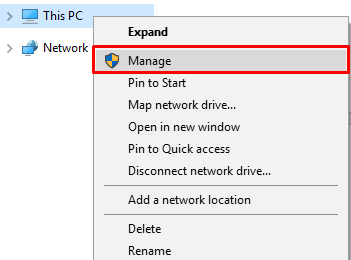
To get started, find the shortcut for My Computer. You can access My Computer either by selecting the Start Menu, or by opening File Explorer where you’ll see it on the left side (it may be listed as This PC or whatever name you’ve given your computer). With My Computer located, right-click it and go to Manage.
This will open the Computer Management window. From here, Click on System Tools > Local Users and Groups > Users.
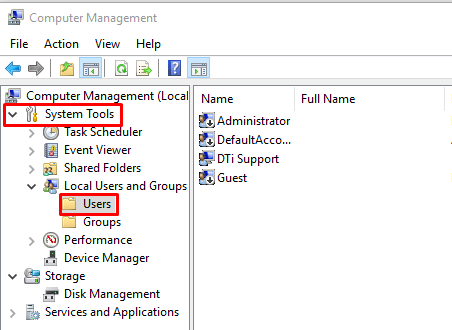
Locate the account you wish to change the password for, right-click it, and select Set Password...
This action will open a new window, warning you of the security risk associated with changing your password. Seeing as you’re dealing with your own PC, you can ignore the risk by clicking Proceed.
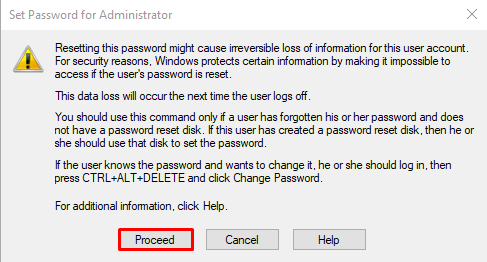
This will bring you to a new window for Set Password for (User Name).
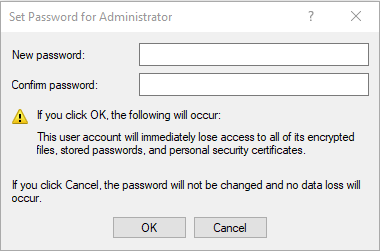
From here, you will enter your new password into the New password: form. Enter it a second time in the Confirm password: form, and click OK.
Now, the next time you restart your system or sign out of Windows, you will use your new password to access your PC. Should you find yourself logged in and again forgetting your Windows password, no worries, just go through this process again.
For more computer tips and PC best practices, check Suffolk Computer Consultants’s blog every week and subscribe for the latest.



Comments